Support Center
Comprehensive guides and help for BooxDay Calendar
Install from Play Store
Download BooxDay free from Google Play on your Boox tablet
Grant Permissions
Allow storage access so your notes persist in Documents
Choose Calendar Mode
Private Mode (on-device only) or Cloud Sync (Google/Outlook calendars)
Start Writing
Tap any date and begin writing with your stylus
First-Time Setup Guide
Storage Permission
When you first open BooxDay, it will request storage permission. This is required because BooxDay stores all your data in a dedicated folder that:
- Persists after uninstall – Your notes survive even if you remove and reinstall the app
- Is easily backed up – You can copy the folder to your computer or cloud storage
- Transfers between devices – Move your data to a new Boox tablet by copying the folder
/storage/emulated/0/Documents/booxdaydb/
Choosing Your Calendar Mode
BooxDay offers two calendar modes that you can choose during setup or change later in Settings:
Tip: You can start with Private Mode and switch to Cloud Sync later when you're ready to connect Google or Outlook calendars. Your on-device data will be preserved.
Understanding the Interface
The main screen is divided into two areas:
- Calendar View (top ~40%) – Month grid showing dates with dots indicating which days have events, tasks, or memos. Tap any date to view that day.
- Editor Canvas (bottom ~60%) – Your writing surface. Switch between Memos (freeform pages) and Tasks (structured to-do list) using the tabs.
The toolbar appears at the top or bottom (configurable in Settings) and provides access to all drawing tools, AI features, and settings.
Display Optimization
BooxDay is specifically optimized for e-ink displays using the official Onyx SDK:
- Native stylus support with full pressure sensitivity and tilt detection
- No animations or transitions that cause e-ink ghosting
- High-contrast UI designed for grayscale displays
- Optimized refresh patterns to minimize screen flashing
For best results, set your device's refresh mode to Normal or Speed in Boox system settings.
Your Data & Privacy
Your handwritten strokes never leave your device. All ink data is stored locally in the app database. When using AI features like handwriting recognition, only the resulting text is processed—never your original stroke data or images.
What Stays Local
- All handwritten strokes (stored as compressed binary data)
- Embedded images in your memos
- Task completion states and priorities
- Page history and undo/redo stacks
What Can Sync (Cloud Sync Only)
- Typed event titles, times, and descriptions to/from Google Calendar
- Calendar metadata (which calendars to display)
You control sync on a per-event basis—enable or disable the sync toggle when creating or editing any event.
Writing & Drawing
BooxDay uses the Onyx SDK for native stylus support with pressure sensitivity and tilt detection.
Pen Types
- Select a pen from the toolbar. Each pen type has unique stroke characteristics mapped to Onyx's native styles.
- Adjust stroke width using the size selector (1-5). Pressure sensitivity works with all sizes.
- Choose a color – Ballpen offers red, green, and blue variants. Other pens use black.
- Start writing anywhere on the canvas. Your strokes are auto-saved continuously.
Erasing & Selection
Multiple ways to erase and select content for editing or deletion.
- Stroke Eraser: Tap the eraser icon. Touch any stroke to delete the entire stroke at once.
- Object Eraser: Long-press the eraser icon to switch modes. This erases everything within your eraser path.
- Selection Tool: Tap the lasso icon, then draw around strokes to select them. Selected strokes can be moved, deleted, or copied.
- Stylus Back Button: If your stylus has a back button, it acts as an eraser when pressed against the screen.
Scribble-to-Erase: Enable this in Settings to erase by scribbling back and forth over content (like crossing out text).
Gestures & Navigation
BooxDay uses minimal gestures to prevent accidental triggers while writing. Most gestures are disabled by default for better palm rejection.
| Gesture | Action |
|---|---|
| Swipe Left | Go to next page (in canvas area) |
| Swipe Right | Go to previous page |
| Long Press | Select mode (draw lasso) |
| Two-Finger Tap | Delete current page (with confirmation) |
Double-tap and other gestures are intentionally disabled to prevent interference with stylus input.
Working with Memos
Memos are unlimited freeform pages for each day. Use them for meeting notes, sketches, brainstorming, or anything else.
- Select a date from the calendar view to open that day's memos.
- Write freely anywhere on the canvas. Each page provides a full writing surface.
- Add more pages by swiping left or tapping the "+" button. There's no limit to pages per day.
- Navigate pages using swipe gestures or the page indicator at the bottom.
- Link to events: Tap the link icon to attach your memo page to a specific calendar event.
Each day stores a list of page IDs internally. Pages are independent and can be reordered or deleted without affecting others.
Managing Tasks
Tasks are structured to-do lists with 10 rows per page. Each task has a checkbox, priority level, and optional time estimate.
- Switch to Tasks tab at the bottom of the editor to see your task list.
- Write in any row – each of the 10 rows is an individual task with its own metadata.
- Check off tasks by tapping the checkbox on the left. Your handwriting gets a strikethrough.
- Set priority by tapping the priority indicator (cycles through A/B/C levels).
- Add time estimate by tapping the clock icon and entering minutes.
- Migrate incomplete tasks to another day using the migrate button. The app tracks migration history to identify "zombie" tasks.
Breaking Down Tasks
Long-press any task to break it into subtasks. This creates a parent-child relationship where completing all subtasks marks the parent complete.
Calendar & Events
The calendar view shows your month at a glance with indicators for days that have events, tasks, or memos.
- Navigate months by swiping left/right on the calendar grid or tapping the month name.
- Tap any date to view that day's events in the panel below the calendar.
- Create an event by tapping the "+" button in the events panel. Set title, time, duration, and optionally enable sync.
- Edit or delete by tapping an existing event to open the edit dialog.
- Per-event sync: In Cloud Sync mode, toggle the sync switch to control which events sync to Google Calendar.
In Cloud Sync mode, Google Calendar events appear alongside your on-device events. The sync is bidirectional—changes in BooxDay push to Google, and vice versa.
AI Handwriting Recognition
Convert your handwriting to typed text using AI. The process uses a 3-stage pipeline for accuracy.
- Write your content on the memo canvas or in task rows.
- Select the strokes you want to convert using the lasso tool.
- Tap "Recognize" in the selection menu. The AI captures an image of your selection.
- Stage 1 (Vision): AI extracts raw text from the image using vision models.
- Stage 1.5 (Inference): Semantic correction fixes OCR errors (e.g., "Mooting" → "Meeting").
- Stage 2 (Formatting): Text is structured with proper formatting and markdown.
- Review the result and confirm to insert as a text annotation.
Privacy: Your original stroke data never leaves the device. Only the resulting text from recognition is processed by the AI.
Voice Input
Dictate text, create events, or add tasks using your voice. The system uses smart silence detection that adapts to your speaking pace.
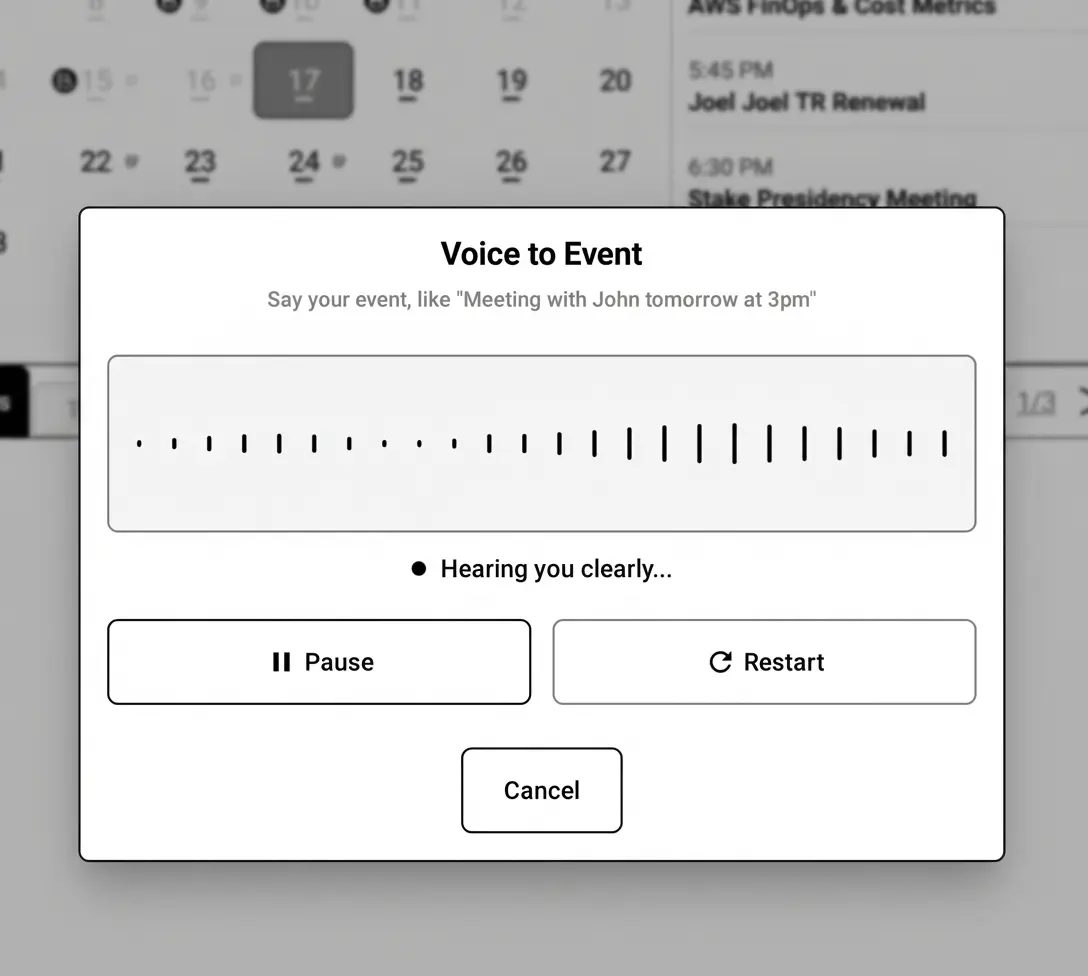
- Tap the microphone icon in the toolbar to start listening.
- Speak naturally – the system detects when you're done speaking (3s base + adaptive grace period).
- Pause if needed – longer utterances get more grace time (200ms per second of speech, up to 5s max).
- Review the transcription – the AI can parse your speech into structured events or tasks.
- Confirm to insert – text is added as a text annotation, or events/tasks are created.
Voice Commands
Try natural phrases like:
- "Meeting with John tomorrow at 3pm"
- "Add task: buy groceries, high priority"
- "Note: remember to call the dentist"
AI Planning Assistant
Think of the AI Planning Assistant as your personal productivity coach. It looks at your day—what you've planned, what's overdue, how packed your schedule is—and offers smart suggestions to help you make the most of your time.
How It Helps You
- Reschedule smarter: "Tomorrow looks lighter—want to move this task there?"
- Block focused time: "You have a 2-hour gap this afternoon—perfect for deep work"
- Break down big tasks: "This seems like a lot—want to split it into smaller steps?"
- Catch stuck tasks: "You've moved this 5 times now—maybe it's time to tackle it or let it go?"
- Batch similar work: "Three quick emails to send—want to knock them out together?"
- Add breathing room: "Back-to-back meetings all day—let's add a buffer"
Using It
- Tap the AI button in the toolbar when viewing your day
- Review the suggestions—each one explains why it's being recommended
- Accept what makes sense—tap a suggestion to apply it, or dismiss ones that don't fit
- Set up your preferences (Settings → AI Preferences) so the AI knows your work style and priorities
Pro tip: The more you tell the AI about yourself in AI Preferences, the better its suggestions become. It learns whether you're a morning person, if you have kids to pick up, or when you need uninterrupted focus time.
Setting Up AI Preferences
AI Preferences is where you teach BooxDay about you. Take 2-3 minutes to fill it out, and the AI will understand your lifestyle, priorities, and rhythms—giving you suggestions that actually make sense for your life.
What You'll Set Up
- Your priorities: What matters most right now? Work, family, health, hobbies? Pick your top 3.
- About you: Are you a student, professional, freelancer, or stay-at-home parent? Morning person or night owl?
- Daily rhythm: Do you prefer deep focus blocks or frequent task-switching? Structured routine or spontaneous flow?
- Your lifestyle: Got kids? Pets? Love fitness? Work remotely? These details shape smarter suggestions.
- AI style: Want practical task-focused advice, or a more holistic approach including self-care reminders?
Try Voice Setup
Don't want to tap through forms? Use Voice Setup to describe yourself naturally in about 30 seconds:
"I'm a software developer working from home. Health and side projects are my focus right now. I'm a night owl, I have a dog, and I love reading and video games."
The AI extracts your preferences from natural speech—no forms required.
Special Modes
- Vacation Mode: Relaxation-focused suggestions, minimal work reminders
- Crunch Mode: Deadline-focused, aggressive time blocking, no distractions
Your preferences stay on your device and are only used to personalize AI suggestions. You can update them anytime in Settings → AI Preferences.
Smart Suggestions
Running low on ideas for what to tackle next? Smart Suggestions generates task ideas based on your patterns, the time of day, and what you've told the AI about your priorities.
How It Works
- Morning routines: Suggests exercise, planning, or breakfast prep in early hours
- End-of-day wind-down: Reminders to review tomorrow, prep for bed, or reflect
- Weekly patterns: Suggests grocery shopping on weekends, weekly reviews on Fridays
- Follow-ups: Related tasks based on what you've been working on
- Your interests: Health reminders if you marked fitness as a priority, study sessions if you're a student
- Tap the lightbulb icon in your Tasks view
- Browse suggestions—each is tailored to your context
- Tap to add individual tasks, or use "Add All" for a batch
Not seeing good suggestions? Fill out AI Preferences! The more the AI knows about you, the more relevant its ideas become.
Daily Summary
End your day with clarity. The Daily Summary shows what you accomplished, what's still pending, and offers AI-powered insights about your productivity patterns.
What You'll See
- Completed tasks: Everything you checked off, with priority labels
- Incomplete tasks: What didn't get done—with options to migrate or break down
- Completion stats: Your success rate for the day (100% gets a celebration!)
- AI insights: Patterns the AI noticed—like "You're most productive in mornings" or "Consider fewer tasks tomorrow"
- Open Daily Summary from the toolbar menu at the end of your day
- Review your wins—acknowledge what you accomplished
- Handle stragglers: Migrate incomplete tasks to tomorrow, or break them into smaller steps
- Read the insights—small observations that help you plan better tomorrow
Build the habit: Checking Daily Summary before bed helps close the day mentally and sets you up for a clearer tomorrow.
Turn Memos into Tasks
Scribbled a bunch of to-dos during a meeting? Memo to Tasks uses AI to read your handwriting and extract actionable tasks automatically.
How It Works
- Write freely in your memo—bullet points, scattered notes, whatever works
- Tap the magic wand icon or select "Extract Tasks" from the menu
- AI reads your handwriting and identifies anything that looks like a to-do
- Review suggested tasks: Each shows the extracted text and a suggested priority (A/B/C)
- Pick what to add: Check the tasks you want, choose a date, and tap "Add Tasks"
Tips for Better Extraction
- Write task-like phrases: "Call dentist", "Finish report", "Buy groceries"
- Bullet points or numbered lists help the AI identify separate items
- Slightly larger handwriting improves recognition accuracy
The AI shows reasoning for each extracted task, so you can understand why it thinks something is a to-do. Review and deselect anything that's just a note, not an action.
Export & Backup
BooxDay supports full backup and multiple export formats.
Backup (Full Data)
- Go to Settings → Backup & Export
- Tap Create Backup to generate a JSON file
- Backup saves to:
/Documents/booxdaydb/backups/ - File includes: calendars, events, tasks, pages, strokes, images, text annotations
Export Formats
- JSON: Complete backup (recommended for transfers)
- PDF: Multi-page export for sharing or printing
- XOPP: Xournal++ format for cross-platform compatibility
Google Drive Backup
In Cloud Sync mode, enable auto-backup to Google Drive. Configure frequency: Daily, Weekly, or Manual.
Boox Notes Integration
BooxDay can index and link to your native Boox Notes app, automatically associating notes with calendar events.
- Enable indexing in Settings → Boox Notes Integration
- Auto-linking scans note titles and timestamps to match events
- Confidence levels:
- HIGH (80%+): Auto-linked
- MEDIUM (50-79%): Suggested for review
- LOW (20-49%): Listed as possible match
- Manual linking: Tap any event and select "Link Boox Note" to browse and attach
SemanticGenius & Smart Link
SemanticGenius automatically understands what you write and connects notes to related calendar events. Here's how to make the most of it.
How Smart Link Works
- Just write – SemanticGenius analyzes your notes automatically as you write
- Check Smart Link – Tap any calendar event to see AI-suggested related notes
- Review suggestions – Notes are ranked by relevance using a 9-component scoring system
- Confirm links – Tap to link a suggested note to the event
What SemanticGenius Extracts
- Keywords – Important terms and phrases
- People & Organizations – Names mentioned in your notes
- Dates & Times – Temporal references like "tomorrow" or "next Friday"
- Action Items – Tasks hidden in your writing (e.g., "Call John about the report")
- Domain – Work, teaching, personal, spiritual, creative, etc. (23 domains)
- Intent – Meeting notes, planning, brainstorming, journal, etc. (65+ intents)
Tips for Better Matching
- Include names of people you're meeting with
- Mention the event topic or project name
- Write dates and times naturally (SemanticGenius understands them)
- Use your normal writing style—no special formatting needed
Privacy: All SemanticGenius analysis happens on your device. Your notes never leave your tablet.
Settings & Preferences
Customize BooxDay to match your workflow.
General
- First day of week: Sunday or Monday
- Date format: M/D/Y or D/M/Y
- Time format: 12-hour or 24-hour
- Start tab: Open to Memos or Tasks by default
Display
- Toolbar position: Top or Bottom
- Monochrome mode: Extra e-ink optimization
- PDF pagination: Show page boundaries in embedded PDFs
Sync (Cloud Sync Mode)
- Default sync: Whether new events sync by default
- Show sync badges: Visual indicators for sync status
- Offline warning: Alert when changes are pending upload
BooxDay is optimized for all Onyx Boox tablets running Android 10 or higher. The app uses the official Onyx SDK for native stylus support, pressure sensitivity, and e-ink display optimizations.
Tested and supported devices include:
- Go 10.3
- Note Air 3, Note Air 3C, Note Air 4C, Note Air 5C
- Note Max, Note XC
- Page
- Tab Ultra
The app may work on other Android e-ink devices, but native stylus features and display optimizations require the Onyx SDK.
Yes, completely. BooxDay stores all data locally on your device. You can create events, write memos, manage tasks, and use all core features without internet.
Features that require internet:
- Google Calendar sync (Cloud Sync mode)
- AI features (handwriting recognition, voice input, planning assistant)
- Google Drive backup
In Cloud Sync mode, events sync when you're online. Changes made offline are queued and uploaded automatically when connectivity returns.
Never. Your handwritten strokes are stored locally in a compressed binary format (SB1) in the app database. This data never leaves your device.
When you use AI handwriting recognition:
- A temporary image of the selected strokes is created
- The image is sent to the AI vision model for text extraction
- Only the resulting text is returned and stored
- The temporary image is discarded
Your original stroke data, coordinates, and pressure information remain on-device at all times.
SemanticGenius is BooxDay's intelligent engine that automatically understands your handwritten notes and connects them to your calendar events and tasks. It transforms your notes from isolated pages into an interconnected knowledge system.
Key capabilities:
- Automatic Understanding – Extracts keywords, people, organizations, and dates from your handwriting
- Smart Link – Automatically suggests which notes relate to each calendar event
- Domain Classification – Classifies notes by domain (work, teaching, personal, etc.) and intent (meeting notes, planning, journal)
- Action Item Extraction – Finds tasks hidden in your notes and surfaces them in your task view
No manual tagging or folder organization required—just write naturally, and SemanticGenius handles the rest.
SemanticGenius uses a multi-step analysis pipeline that examines your text for:
- Keywords and phrases – Important terms identified through TF-IDF analysis
- Named entities – People, companies, places, dates, and monetary amounts
- Structural patterns – Checklists, meeting formats, journal entries
- Temporal references – Dates, deadlines, time mentions
- Domain-specific vocabulary – Technical terms, educational language, etc.
This analysis happens automatically whenever you write—no configuration needed. The system recognizes 23 life domains and over 65 intent types.
Yes! SemanticGenius can index notebooks from the Boox Notes app. Once indexed, those notes become searchable and can be linked to your calendar events through Smart Link.
To enable this:
- Go to Settings → OCR & Search
- Enable "Index Boox Notes"
- Select which notebooks to include
Your existing Boox Notes notebooks become searchable, connected knowledge—without needing to move or copy anything.
SemanticGenius uses a 9-component scoring system that considers multiple factors: shared keywords, mentioned people, domain relevance, organizations, locations, action items, and time references.
In our testing, relevant notes appear in the top suggestions over 85% of the time.
The system also learns from your behavior. When you link a note to an event, SemanticGenius remembers that pattern for future suggestions.
Memos are unlimited freeform pages for each day. Write anywhere, sketch diagrams, take meeting notes—there's no structure imposed. New pages are added automatically as you need them.
Tasks are structured to-do lists with 10 rows per page. Each row is an individual task with:
- Checkbox for completion
- Priority level (A/B/C)
- Time estimate
- Migration tracking
- Break-down into subtasks
Use Memos for free-form thinking and notes. Use Tasks for actionable items you need to track.
Your BooxDay data lives in a single folder that you can copy between devices:
- Connect your old device to a computer via USB
- Navigate to
/Documents/booxdaydb/ - Copy the entire
booxdaydbfolder to your computer - Install BooxDay on your new device and open it once (this creates the folder structure)
- Close BooxDay on the new device
- Copy your backed-up folder to
/Documents/booxdaydb/on the new device, replacing existing files - Open BooxDay—all your data will be restored
Alternatively, use the in-app Backup feature to create a JSON backup file and restore it on the new device.
Currently, BooxDay only supports direct sync with Google Calendar. However, you can work around this:
For Outlook:
- In Outlook, subscribe to your Google Calendar or share your Outlook calendar to Google
- Once events appear in Google Calendar, they'll sync to BooxDay
For Apple Calendar (iCal):
- Add your Google account to Apple Calendar
- Events will sync: Apple Calendar ↔ Google Calendar ↔ BooxDay
Native Apple Calendar support is on our roadmap.
We're actively working on it!
Native Microsoft Outlook (Exchange/Office 365) sync is one of our most requested features, and we're committed to delivering it. However, Microsoft's authentication and API requirements are quite finicky—they have strict certification processes and complex OAuth flows that we need to implement correctly.
Our team has been working closely with Microsoft's technology stack to ensure we deliver a stable, reliable solution rather than a half-baked implementation. We want your Outlook events to sync seamlessly, just like Google Calendar does today.
Expected: Our next major release will include Outlook sync support. In the meantime, you can sync Outlook to Google Calendar and use the Google sync in BooxDay as a bridge.
BooxDay stores your data in the Documents folder rather than app-private storage. This requires storage permission on Android, but provides significant benefits:
- Survives uninstall: Your notes won't be deleted if you remove the app
- Easy backup: Simply copy the folder to your computer or cloud storage
- Device transfer: Move your data between devices by copying the folder
- Accessible: You can browse your backup files with any file manager
- Boox Notes integration: Access your Boox Notes files to link them with calendar events
About Boox Notes Access: BooxDay can read the proprietary note files created by the Boox Notes app (stored in /note/). This enables our unique integration feature—letting you browse, preview, and link your existing Boox Notes directly to calendar events. BooxDay only reads these files; it never modifies or deletes your original Boox Notes.
The permission is used to read and write the /Documents/booxdaydb/ folder for your BooxDay data, and to read your Boox Notes for the integration feature.
BooxDay's AI features use the OpenRouter API to access various language and vision models. Here's what gets sent:
Handwriting Recognition:
- A temporary image of selected strokes (not the raw stroke data)
- Image is processed by vision models (Nova Lite, Gemini Flash, etc.)
- Only extracted text is returned
Voice Input:
- Audio is processed by speech-to-text models
- Transcribed text may be further processed for event/task parsing
AI Planning:
- Your task titles, event titles, and AI preferences are sent for analysis
- No handwriting data is included
You can provide your own OpenRouter API key in Settings for additional privacy control.
Note on free AI models: Some AI models we use are free tier models provided by OpenRouter. These providers may use your data for model training. Our paid/premium version uses only paid models where your data is guaranteed not to be stored or used for AI training.
We're Boox lovers, building exclusively for Boox lovers.
BooxDay is purpose-built for Onyx Boox devices and deeply integrates with the proprietary Onyx SDK for:
- Native stylus input handling (RawInputCallback)
- Pressure sensitivity and tilt detection
- E-ink display refresh control
- Hardware-accelerated stroke rendering
- Boox Notes app integration
Our entire focus is on delivering the best possible experience for Boox tablet owners. We don't test on, develop for, or support any other devices. This laser focus is what allows us to build features that truly leverage what makes Boox tablets special.
Your data is safe! Because BooxDay stores everything in /Documents/booxdaydb/ (not app-private storage), uninstalling the app does NOT delete your data.
To fully remove your data after uninstalling:
- Open any file manager
- Navigate to
/Documents/ - Delete the
booxdaydbfolder
To restore after reinstalling:
- Install BooxDay from Google Play
- Grant storage permission
- The app will automatically detect and use your existing data
Stylus Not Responding or Strokes Missing
Possible Causes
- Stylus battery depleted (if using active stylus)
- Wrong stylus type (capacitive instead of EMR/Wacom)
- Raw drawing mode not properly initialized
- Stylus calibration off
- Conflict with palm rejection
Solution
- Ensure you're using an EMR/Wacom stylus (the one that came with your Boox or a compatible replacement)
- Charge your stylus if it has a battery
- Close BooxDay completely and reopen
- Go to Boox System Settings → Stylus → Calibrate
- Try restarting your device
- Test if stylus works in the native Boox Notes app—if not, it's a device/stylus issue, not BooxDay
Strokes Disappearing After Drawing
Possible Causes
- Accidentally in eraser mode
- Two-finger tap triggered undo
- Switching dates/tabs before auto-save completed
- Storage space exhausted
- Database write failure
- Onyx SDK stroke handling inconsistency
Solution
- Check the toolbar—make sure you have a pen selected, not the eraser
- Look for the redo button—if strokes were undone, you can redo them
- Wait for the auto-save indicator (brief flash) before switching dates or tabs
- Check device storage—ensure at least 500MB free
- Try creating a backup (Settings → Backup)—if this fails, there may be storage issues
- Update your Boox firmware to the latest version
- Contact support with your device model and steps to reproduce
A note on SDK limitations: The Onyx Boox SDK, like any software, isn't perfect and can occasionally exhibit bugs or instabilities. Onyx is committed to their SDK platform and community, frequently pushing updates and improvements. As a third-party application, BooxDay continuously adapts to work within the SDK's limitations. If you experience persistent issues, updating your Boox firmware often helps.
Google Calendar Not Syncing
Possible Causes
- Not in Cloud Sync mode
- No internet connectivity
- Google authentication expired
- Calendar not selected for sync
- Per-event sync disabled
- Sync conflict (CONFLICT status)
Solution
- Verify you're in Cloud Sync mode: Settings → Calendar Mode should show "Cloud Sync"
- Check internet connectivity on your device
- Re-authenticate: Settings → Google Account → Sign Out, then Sign In again
- Check calendar selection: Settings → Calendars and ensure the desired calendars are checked
- For individual events, check if the sync toggle is enabled
- Pull down on the calendar view to force a manual sync
- Check for sync conflicts: events with CONFLICT status need manual resolution
App Running Slowly or Laggy
Possible Causes
- Too many apps running in background
- Device refresh mode set to high quality
- Page with excessive strokes
- Low storage space affecting database performance
- Cache bloat
- SDK rendering overhead during complex operations
Solution
- Close other apps running in the background
- Set device refresh mode to "Speed" or "Normal" in Boox system settings
- If a specific page is slow, it may have too many strokes—consider exporting and starting a new page
- Ensure at least 500MB free storage
- Clear app cache: Android Settings → Apps → BooxDay → Clear Cache
- Update your Boox firmware—Onyx frequently releases performance improvements
- Restart your device
Note: Some lag may occasionally stem from the Onyx SDK's e-ink rendering layer, which BooxDay relies on for native stylus support. Keeping your device firmware updated helps, as Onyx continuously improves SDK performance.
Voice Input Not Working
Possible Causes
- Microphone permission not granted
- No internet connection (required for voice processing)
- Microphone hardware issue
- Background noise interfering
Solution
- Check microphone permission: Android Settings → Apps → BooxDay → Permissions → Microphone
- Verify internet connectivity—voice processing requires online access
- Test microphone in another app (voice recorder, Google Assistant)
- Move to a quieter environment
- Speak clearly at a moderate pace—the smart silence detection adapts to your speaking
- Wait for the listening indicator before speaking
Recovering Lost Data
Recovery Options
- Check for automatic backup files
- Restore from Google Drive backup (if enabled)
- Recover Google Calendar events (they exist in Google)
- Contact support for database recovery assistance
Steps to Try
- Open a file manager and navigate to
/Documents/booxdaydb/backups/ - Look for backup files named
booxday_backup_YYYY-MM-DD_HHmmss.json - If found, go to Settings → Backup → Restore and select the backup file
- If you had Google Drive backup enabled, check Settings → Backup → Restore from Drive
- Google Calendar events can be re-synced by signing out and back into Google in Settings
- Important: Handwritten content exists only on-device. If no backup exists, handwriting cannot be recovered from cloud services.
AI Features Failing or Slow
Possible Causes
- Slow or unstable internet connection
- API rate limits exceeded
- Model temporarily unavailable
- Image too large or complex for recognition
- High latency to AI servers
Solution
- Check your internet connection—AI processing speed depends heavily on network quality
- Try switching to a faster WiFi network if available
- Wait a few minutes and try again (API rate limits reset)
- For handwriting recognition, try selecting a smaller area of text
- The AI uses a fallback chain of models—if one fails, it tries others automatically
- If you have your own OpenRouter API key, add it in Settings for dedicated quota
- Check the error message—it may indicate which step failed
Internet matters: All AI features require an active internet connection. The speed of AI responses directly correlates with your network quality—a strong, stable WiFi connection will provide the best experience.
Boox Notes Not Appearing
Possible Causes
- Storage permission not granted
- Boox Notes stored in non-standard location
- Notes created with older Boox Notes version
- Note index not yet built
Solution
- Verify storage permission: Android Settings → Apps → BooxDay → Permissions → Storage
- Open Settings → Boox Notes Integration and tap "Refresh Index"
- Ensure your Boox Notes are stored in the default
/note/folder - Try opening and saving a note in Boox Notes app, then refresh the index
- Note: Only notes in supported formats (.note files) will appear
Tasks Not Syncing or Duplicating
Possible Causes
- Task created in Private Mode (on-device only)
- Sync conflict between on-device and Google Calendar
- Google Tasks API rate limit reached
- Task marked as "local only"
Solution
- Check your calendar mode: Settings → Calendar Mode should be "Cloud Sync" for Google sync
- Private Mode tasks are on-device only by design—they won't sync to Google
- Pull down on the Tasks view to force a manual sync
- For duplicates, check if the same task exists in both local and synced calendars
- If issues persist, try signing out and back into Google Account
Export or Backup Failing
Possible Causes
- Insufficient storage space
- Storage permission revoked
- Google Drive not signed in (for cloud backup)
- Large database size causing timeout
Solution
- Check available storage—exports need space equal to your database size
- Verify storage permission is granted
- For Google Drive backup, ensure you're signed into Google in Settings
- Try exporting individual pages as PNG/PDF instead of full backup
- Check
/Documents/booxdaydb/backups/for partial backup files - If your database is very large, try during a time when the app isn't actively syncing
Handwriting Recognition Inaccurate
Possible Causes
- Handwriting too small or cramped
- Mixed cursive and print styles
- Low contrast strokes (thin pen, light pressure)
- Selection area includes non-text elements
Solution
- Write slightly larger—AI models work best with clearly spaced characters
- Use consistent style (all print or all cursive works better than mixed)
- Increase pen thickness or write with more pressure for better contrast
- Select only the text area, avoiding drawings or diagrams
- For lists or structured text, select one item at a time
- Try different AI models in Settings → AI → Handwriting Model
General tip: Most issues can be resolved by closing and reopening the app, or restarting your device. If problems persist after trying these steps, please contact support with your device model, app version, and steps to reproduce the issue.
Your Device
Which Boox model you're using helps us understand your setup
Steps to Reproduce
What were you doing when the issue occurred? Walk us through it
Expected vs Actual
What should have happened versus what actually happened?
Send Us a Message
Fill out the form below and we'll respond within 3 days (we're a small team of 1 😊).